How to Hide Videos on Android: A Practical Guide
A practical guide to hide videos on Android: prep your storage, move clips into a locked vault, stop thumbnails and backups leaking, and know the real limits.
By the Nascentra team · 6 min read
Trying to hide videos on Android sounds like the same job as hiding photos. In practice it’s a bit messier. Video files are big, they get copied around by messaging apps, they leave thumbnails behind, and they’re often the first thing a cloud backup grabs. So a clip you thought was tucked away can turn up somewhere you didn’t expect.
This guide is the practical version, from the team that builds KiWi Vault. We’ll cover what to do before you move anything, the actual steps, how to watch and share hidden clips afterwards, and the honest limits.
Why videos are trickier than photos
If you’ve already read our guide on hiding photos on Android, most of the basics carry over. Videos add a few twists of their own:
- Size. A few minutes of high-resolution video can take up more space than hundreds of photos. That affects how hiding works, as you’ll see below.
- More copies. Videos you receive in chats are often saved by the messaging app in its own folder, separate from your camera folder. Forward a clip once and there may be three copies on your phone.
- Thumbnails and previews. Galleries and file managers show a frame from the video, so even a renamed file can give itself away.
- Backups grab them early. On many phones, new videos start uploading to a cloud photo service as soon as you’re on Wi-Fi.
None of this makes hiding videos hard. It just means a little prep pays off.
Before you start: a five-minute prep checklist
Do this once and the rest goes smoothly.
- Check your free space. A vault like KiWi copies a video into its private storage first, then removes the original if you choose. For a moment you need room for both copies. If your phone is nearly full, hide large videos one at a time.
- Make a backup somewhere you trust. An offline vault doesn’t back anything up for you. If a video matters, keep a copy on a computer or drive you control before you start.
- Look at your cloud photo service. If the video has already been uploaded, hiding it on your phone may not remove it from the cloud. Decide what you want there and handle it separately.
- Find the duplicates. Open your gallery’s folder view and look in your messaging apps’ media folders. Note every copy of the clip you want hidden.
- Charge up. Moving large files takes a little while. Don’t start a big batch at 5% battery.
How to hide videos on Android with a vault app
Here’s how it works in KiWi Vault. The broad steps are similar in most vault apps.
- Open the vault and set your lock if you haven’t already: PIN, password or pattern, with fingerprint or face unlock as an option.
- Set up recovery. Security questions, or the 8-digit recovery code if you use the Calculator lock. With no account and no server, this is your only way back in if you forget your code.
- Go to the Videos section and add your clips. Select the videos you want to hide.
- Allow storage access when Android asks. On newer versions of Android, the app needs all-files access to remove the original from shared storage. Without it, the video stays in your gallery.
- Choose to delete the originals. This is what actually takes the clip out of your gallery and file manager.
- Repeat for the duplicates you found in your prep, including copies in messaging app folders.
- Check your gallery and file manager. Make sure the clips and their thumbnails are gone. Some galleries keep deleted items in their own trash for a while, so empty that too if you want a clean result.
A shortcut worth knowing: if a video arrives in another app, you can often skip the gallery entirely. Use Android’s share menu and send it straight to KiWi.
Watching, finding and sharing hidden videos
Hiding a video shouldn’t mean you can’t use it.
Watching
Open the vault and play clips from inside it. When you’re done, lock the vault before you hand your phone to anyone. If you’d rather not think about it, Premium’s Auto-Lock locks the vault for you when you leave the app.
Finding the right clip
Once you’ve hidden a few dozen videos, scrolling gets old. KiWi’s in-vault search runs on your phone, and the “For You” section surfaces moments from your vault such as things you hid a few weeks ago.
Sharing with someone nearby
This is where people often undo their own privacy: they unhide a clip, send it through a chat app, and now it’s in two chat histories and possibly two cloud backups. If the other person is in the same room and also uses KiWi, vault-to-vault sharing sends files directly between the two phones over Bluetooth and Wi-Fi, without the internet and without uploading anything. We explain how that works in our guide to sharing files without internet. Only share what you have the right to share, and with the other person’s agreement.
Getting a video back out
Unhide it inside the vault and KiWi restores a copy to your phone’s normal storage. If you delete something by mistake, the Recently Deleted bin keeps it for 30 days.
Common mistakes (and how to avoid them)
Hiding the camera copy but not the chat copy. It’s the most common slip by far. Check messaging app folders every time.
Forgetting the cloud. If your phone already uploaded the clip, it’s still in your cloud account. A vault only controls what’s on your phone.
Filling the phone to the brim. Large batches on a near-full phone can stall. Go in smaller groups.
Skipping recovery setup. We say this in every post because it’s the one that can’t be undone. If you lose your code and your recovery options, nobody, including us, can open the vault.
Treating the vault as your only copy. If the phone is lost, broken or reset, or the app is uninstalled, hidden videos go with it. For anything irreplaceable, keep a second copy you control. Our post on choosing an offline photo vault versus a cloud locker goes deeper on that trade-off.
What a vault can and can’t do for your videos
A vault takes your videos out of the places people casually look: your gallery, your file manager, the media picker in other apps. In KiWi, hidden files live in the app’s private storage, protected by Android’s app sandbox and your device’s encryption, with your PIN, password or pattern stored as a hash rather than in plain form. To be clear, that doesn’t mean every video is individually encrypted, and we’d rather you know that than assume otherwise.
What a vault can’t do: protect a phone that already has spyware on it, stop someone who watches you type your code, or make itself invisible. Disguises like the Calculator and Clock locks draw less attention, but a determined person can still spot the app in your settings.
Where KiWi Vault fits for video
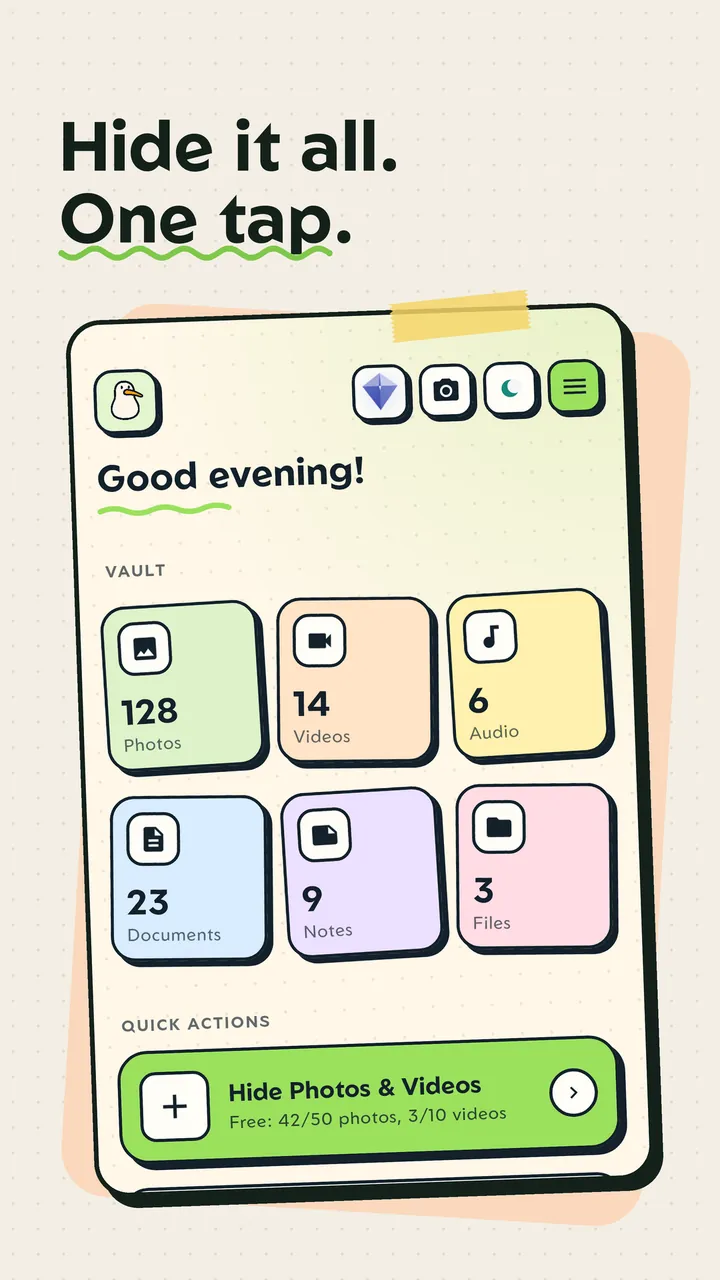
The free version of KiWi lets you hide up to 50 videos alongside up to 275 photos, which is plenty to try the steps above with your most private clips. If you hide a lot of video, Premium removes those limits and adds extras like Intruder Selfie and Auto-Lock. You’ll find the full list of features on the KiWi Vault page, along with a plain explanation of how KiWi works.
If it sounds like a fit, install KiWi Vault from Google Play, move one or two clips in, and run through the checks above. Once you’re happy nothing has leaked, do the rest.