How to Lock Private Notes and Documents on Android
How to lock private notes and hide documents on Android: what to protect, the options you have, step-by-step setup, and the mistakes that leave files exposed.
By the Nascentra team · 6 min read
Photos get most of the attention in privacy conversations, but some of the most sensitive things on a phone are words. A journal entry. A list of passwords you swore you’d move somewhere better. A scanned passport, a medical letter, a contract you haven’t signed yet. If you want to lock private notes and documents on Android, the good news is you don’t need anything complicated. You need to know what you’re protecting, where it currently lives, and one place to put it that has a proper lock on the door.
Here’s how we’d approach it.
Start with an honest inventory
Before you install anything, spend five minutes finding out what’s actually exposed. Text and documents spread across a phone in places people forget about:
- Your default notes app. Often synced to an account, and readable by anyone holding the unlocked phone.
- The Downloads folder. Every PDF you’ve ever opened from an email or chat tends to end up here.
- Chat attachments. Messaging apps keep documents you were sent, sometimes in folders other apps can browse.
- Screenshots. People screenshot boarding passes, bank details and ID cards, then forget the screenshots are sitting in the gallery.
- Scanner and camera apps. Scanned documents usually save as images or PDFs in shared storage.
Make a short list. Most people find two or three things they’d be uncomfortable with someone else reading. Those are the ones worth moving.
Your options for locking notes on Android
Android gives you a few routes, and which ones you have depends on your phone and Android version.
Built-in note locks. Some note-taking apps let you lock individual notes. That’s handy, but it only covers notes written in that app, and the lock is often tied to your screen lock, so anyone who knows your phone PIN gets in too.
Phone-level private areas. Many phones now offer a locked or private space of some kind. These can work well, but what they support differs a lot between manufacturers. Check what yours actually does before relying on it.
A secret notes app or vault app. A dedicated vault keeps notes and documents together behind a separate code that isn’t your phone’s screen lock. That separation matters more than people expect: the person most likely to see your phone unlocked is someone close to you who already knows your screen PIN.
If you want the bigger picture on vaults before choosing, our explainer on what a vault app is covers who they suit and who they don’t.
How to lock private notes and documents in KiWi Vault
Here’s the actual process in KiWi Vault. Notes and files are both included in the free version.
Writing private notes
- Open KiWi and unlock it with your PIN, password, pattern or fingerprint/face.
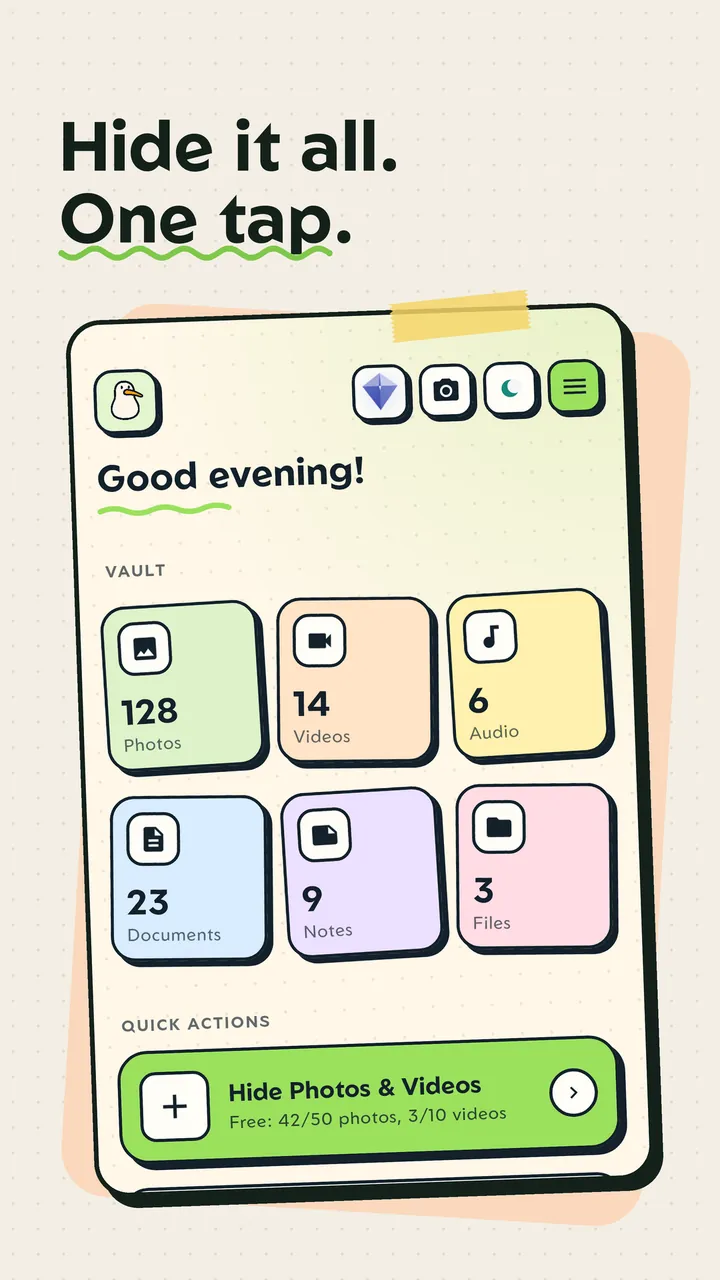
- Go to Notes from the vault home screen.
- Create a new note and write as you normally would.
- That’s it. The note lives inside the vault, in a local database on your phone. It never touches a server, because we don’t have one.
If you have notes sitting in another app, copy the text into a KiWi note, check it saved properly, then delete the original (and empty that app’s trash folder, if it has one).
Hiding documents on Android
There are two ways to get a document into the vault:
- From inside KiWi. Open Documents or Files, choose what to hide, and pick whether to remove the original from shared storage.
- From another app. Use Android’s share button on a PDF or file in your email, chat or file manager, and choose KiWi Vault. The file goes straight into the vault.
Hidden files are copied into KiWi’s private app storage, which is protected by Android’s app sandbox and your device encryption. If you later need a document outside the vault, unhiding it puts a copy back in normal storage.
Finding things again
Once you’ve moved a few dozen files in, the in-vault search helps. It runs locally on your phone, so you can look things up without anything leaving the device.
Choosing a lock you’ll actually remember
A secret notes app is only as good as its lock, and the most common way people lose access to their own notes is a code they set in a hurry and forgot a month later.
A few things we’ve learned from support emails:
- Don’t reuse your phone’s screen PIN. That defeats the point of a separate lock.
- Pick something memorable to you and unguessable to people around you. Birthdays and anniversaries are the first thing a family member will try.
- Set up recovery straight away. KiWi offers security questions and, if you use the Calculator lock, an 8-digit recovery code. Store that code somewhere off the phone.
- Biometrics are a convenience, not a backup. Fingerprint or face unlock is quick, but you still need to remember the underlying code.
We wrote a whole post on this: choosing an app lock PIN, password or pattern without locking yourself out.
Mistakes that leave “locked” documents exposed
Moving a file into a vault doesn’t automatically clean up every trace of it. Watch for these:
- Leaving the original behind. If you choose to keep the original when hiding, a copy is still in your Downloads or gallery.
- Forgetting other copies. The PDF in the vault may still be attached to the email or chat it came from. Delete it there too if you don’t need it.
- Cloud sync on other apps. If your notes app or file manager syncs to an account, the old version might live on in that account’s storage or trash.
- Recently Deleted. When you delete something inside KiWi, it waits in Recently Deleted for 30 days in case you change your mind, then it’s removed automatically. Empty it yourself if you want it gone sooner.
What a vault can’t do for your documents
We’d rather you hear the limits from us.
KiWi has no cloud backup and no account. If your phone is lost, reset or broken, or if you forget your code and every recovery option, notes and documents inside the vault can be permanently lost. We can’t recover them because we never receive a copy. For anything important (identity documents, contracts, records you’ll need again) keep a separate copy somewhere safe that you control, such as an encrypted drive or a printed copy in a secure place.
It’s also worth being precise about protection. KiWi hashes your PIN, password and pattern, encrypts its security settings, and keeps files in private storage protected by Android’s sandbox and device encryption. It doesn’t individually encrypt every document, and no vault can protect a phone that’s already been compromised by malware or someone with full control of it.
A calmer place for the private stuff
Locking notes and documents isn’t about paranoia. It’s about not having a scanned passport one swipe away from anyone who borrows your phone to check a map. Move the handful of things that matter, set a lock you’ll remember, set up recovery, and keep a backup of anything you can’t replace.
If you’d like to try that setup, our vault app handles notes, documents, photos and other files in one place, with a decoy vault and Calculator or Clock disguise available for free. You can download KiWi Vault from Google Play. And if you ever need to hand one of those documents to someone in person, here’s how to share files without internet directly between two phones.